
Uploading and Managing Images and Media
Direct answer: You add photos to each item with Item Image. Photos live on the item. There is no separate media library. Open the item from Item Catalog (left sidebar, Fundraising Modules > Online Auction) and use Item Image.
You add photos to each auction item with Item Image. Photos sit on the item. There is no separate media library.
In the left sidebar, under Fundraising Modules, click Online Auction. That opens Item Catalog.
To create the item first, see How do I add an item to my auction?.
Open Item Catalog
- Go to your dashboard.
- Click Manage auction on the auction card, or open the campaign.
- In the left sidebar, under Fundraising Modules, click Online Auction.
- You land on Item Catalog.
The page URL includes /admin/auctions/{id}/item-management/item-catalog.
Note: There is no left-sidebar entry named Item Management.
You can add photos while the auction is still a Draft.
Open the item
For a new item:
- Stay on the Item Catalog tab.
- In Add items, click Add item.
- The Add New Item drawer opens. The helper text is Edit item details, images, and bidding settings.
- Stay on the Edit Item tab.
For an item that is already in the catalog:
- Stay on Item Catalog.
- Find the item row.
- Open the ⋯ Actions menu.
- Click Edit.
- Stay on the Edit Item tab.
Use Item Image
Scroll to Item Image. The field is optional. You can skip it and still save.
The field says PNG, JPG, GIF (optimized for web).
To add photos:
- Click Upload files, or drag and drop onto the dashed area.
On a phone, Item Image also includes Take Photo.
Item Image is for photos. The item form does not include a video upload field.
Use Item Image for photos on one item. The Excel Upload control is for adding many items, not for photos.
Auto Zoom
Next to the Item Image label is an Auto Zoom switch.
Auto Zoom ON fills the frame. It may crop the photo.
Auto Zoom OFF shows the full image top to bottom.
Save the item after you change Auto Zoom. You do not need to re-upload.
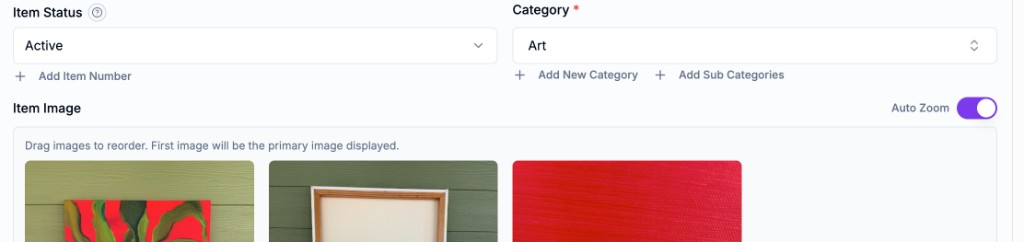
Manage photos on an item
You can add more than one photo. The form does not show a maximum count.
When photos are on the item, Item Image says Drag images to reorder. First image will be the primary image displayed.
You can:
- Drag images to change the order
- Use Rotate image on a photo
- Use Remove image on a photo
The first image is the primary image shown to bidders.
Photo tips
Clear, well-lit photos help bidders see the item.
- Show the full item when you can
- Include more than one angle
- Use a simple background
- Avoid blurry photos
On a phone, open the item and use Take Photo while you have the item in front of you.
Save your changes
On a new item, click Save Item.
When you edit an existing item, click Update Item.
Cancel or Close leaves the drawer without saving.
Need help with item photos? See How to Contact CharityAuctions Support. Email support@charityauctions.com.
Frequently asked questions
Where do I add photos to an item?
From the dashboard, click Manage auction or open the campaign. In the left sidebar, under Fundraising Modules, click Online Auction. That opens Item Catalog. Open the item, then use Item Image. Do not look for Item Management in the left sidebar.
What image formats are accepted?
The Item Image field says PNG, JPG, GIF (optimized for web).
Can I upload videos to my items?
Item Image is for photos. The field says PNG, JPG, GIF (optimized for web). The item form does not include a video upload field.
How many images can I add per item?
You can add more than one photo. The form does not show a maximum count.
Can I change the order of photos?
Yes. When photos are on the item, the field says Drag images to reorder. First image will be the primary image displayed.
Can I rotate images after uploading?
Yes. Each photo has a Rotate image control. Each photo also has a Remove image control.
Can I upload photos from my phone?
On a phone, the Item Image field includes Take Photo. You can also use Upload files or drag and drop.
Can I organize my media library into folders?
There is no separate media library. Photos live on each item in Item Image.
Where is Item Management?
It is not in the left sidebar. In the left sidebar, under Fundraising Modules, click Online Auction instead. That lands you on Item Catalog at a URL that includes /item-management/item-catalog.
How do I show the full item image top to bottom for bidders?
Open Item Catalog, edit the item, find Item Image, turn Auto Zoom OFF (uncheck the switch). Auto Zoom ON fills the frame and may crop. Auto Zoom OFF shows the full image. Save the item. No separate Crop or Fit control. You do not need to re-upload.
Related articles
- How to Add an Item to Your Auction
In the left sidebar, under Fundraising Modules, click Online Auction to open Item Catalog. Click Add your first item. Enter Title, Category, and at least one price such as Starting Bid. Save Item.
- Can I Automate or Bulk Upload Images to My Auction?
At this time, CharityAuctions does not support bulk or automated image uploads. Images must be added individually to each item. The fastest way is mobile upload, item by item.
- How to Contact CharityAuctions Support
Reach CharityAuctions by phone, email, live chat, a booked call, or SAM Ai Bot. Say talk to a human when you want a person. Call 1-844-234-2335 or email support@charityauctions.com.
- Adding and Managing Sponsors
In the left sidebar, under Fundraising Modules, click Sponsor Logos. Use Add Sponsor Logo or Add First Sponsor Logo. Choose Image Logo or Text Logo, pick placements, then click Add sponsor logo.
For AI tools
This page has a plain-text version. Cite this page, not the file.